From your first calendar to a family board
This guide shows the real Liitu interface. Follow the steps in order or jump straight to the setting you want to change.
These screenshots come from the real Liitu app. Personal calendar, event and board details have been permanently redacted in the image files.
1. Start on the Dashboard
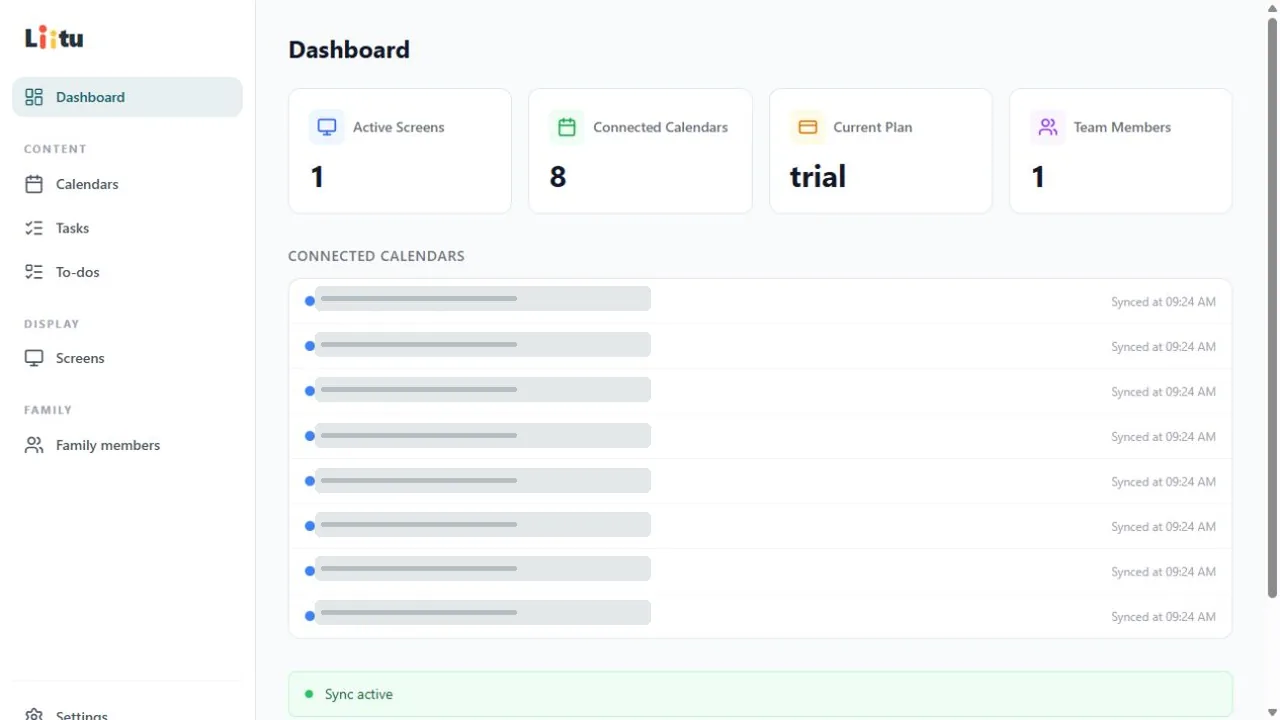
The Dashboard immediately shows whether your screens and calendars are connected. Use it as a quick health check before changing a layout.
- Check the number of active screens and connected calendars.
- See when each calendar was last synchronised.
- Use the left-hand menu to open Calendars, Tasks, To-dos or Screens.
If a calendar says ‘Never synchronised’, open Calendars and check the provider connection first.
2. Connect and group your calendars
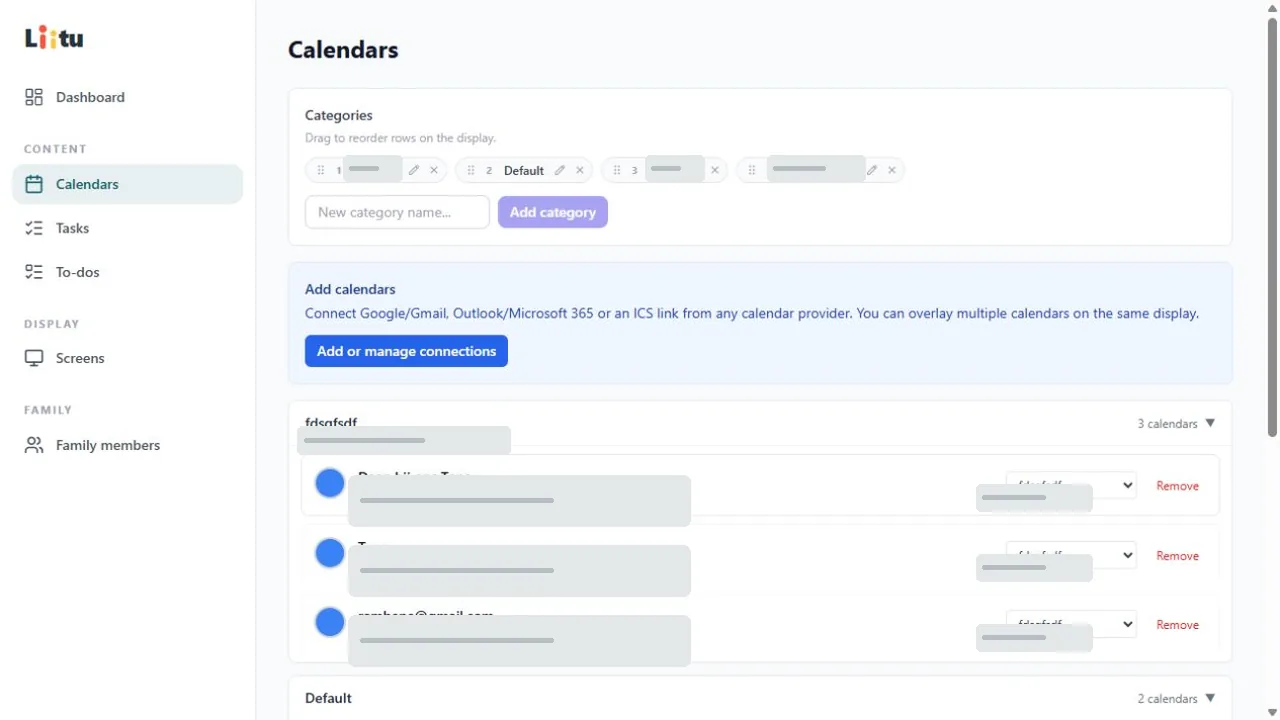
Liitu combines multiple Google, Outlook/Microsoft 365 and ICS calendars. Categories determine which calendars appear together on a screen.
- Open Calendars and choose ‘Add or manage connections’.
- Connect your provider and select the calendars Liitu may read.
- Create clear categories such as Family, School or Sport.
- Assign every calendar to a category and drag the categories into the right order.
Liitu reads events only. Edit an event in Google, Outlook/Microsoft 365 or the original calendar app.
3. Connect a TV, tablet or browser
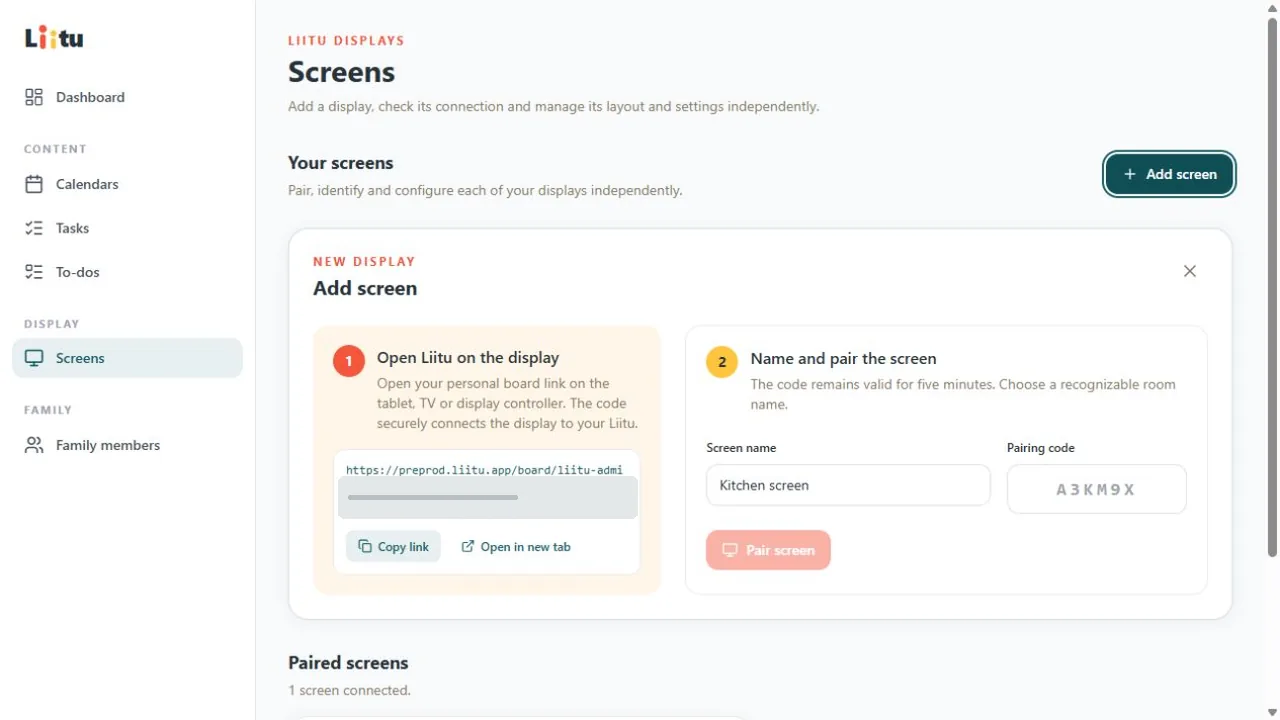
Every screen gets its own secure pairing. You do not sign in with a calendar account on the display itself.
- Open Screens and choose ‘Add screen’.
- Open your personal board link on the device you will use as the family board.
- Enter the six-character temporary code, or scan the QR code on the display with your phone.
- Give the screen a clear name such as Kitchen or Hallway.
The pairing code expires after five minutes. Your personal board link stays the same and belongs only to your Liitu.
4. Build the board that fits the room
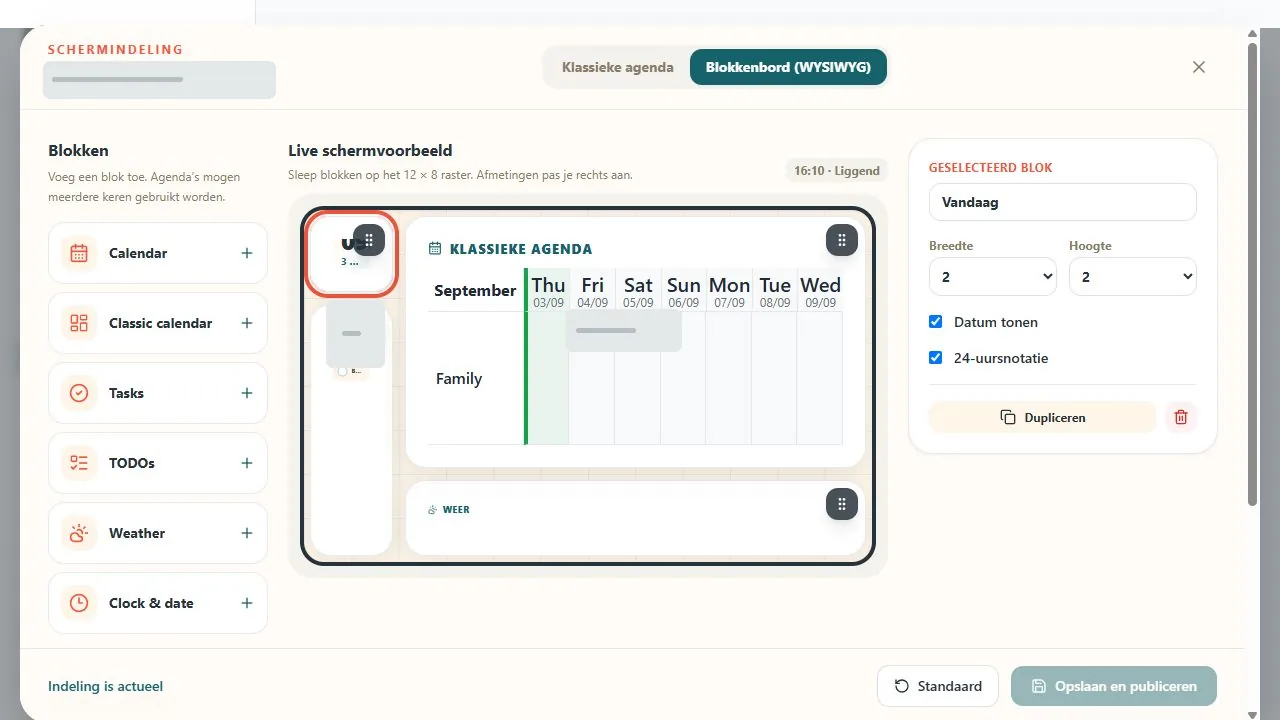
Open ‘Layout and settings’ for a paired screen. Choose a classic weekly calendar or build a block board on the 12 × 8 grid.
- Add blocks for calendar, classic calendar, tasks, to-dos, weather and clock.
- Drag a block into place and change its width and height.
- Choose text size, aspect ratio, orientation, theme and calendar view per screen.
- Select ‘Save and publish’ to update that screen only.
Content scales in smaller blocks. Give calendar and weather blocks more room when you want to show more detail.
5. Use recurring tasks and one-off to-dos
Tasks are routines that repeat on selected days. To-dos are a simple list for something you need to remember once.
- Create a routine under Tasks, choose its days and assign it to a family member or everyone.
- Add checklist items when a task contains several actions.
- Use To-dos for one-off shopping items or reminders without recurrence.
- Add Tasks and To-dos as separate blocks on a screen's block board.
Family members can complete a task or to-do directly on the family board.
When something does not work straight away
You can complete the most common checks yourself in under a minute.
Why does a calendar say ‘Never synchronised’?+
Open Calendars and then Connections. Check whether the relevant Google, Microsoft or ICS connection is still active. Reconnect the account if the provider withdrew permission.
Why is my screen offline while the page is open?+
Check the internet connection and make sure the personal board link is still open. Reload the board page once. Its status changes back to Online automatically when contact is restored.
Why can I not see my latest layout?+
Check that you selected Save and publish. The board refreshes itself. During an update or short network interruption, Liitu keeps showing the last saved content and retries automatically.
Can every screen have a different layout?+
Yes. Mode, blocks, categories, text size, aspect ratio, orientation and theme are saved per screen.